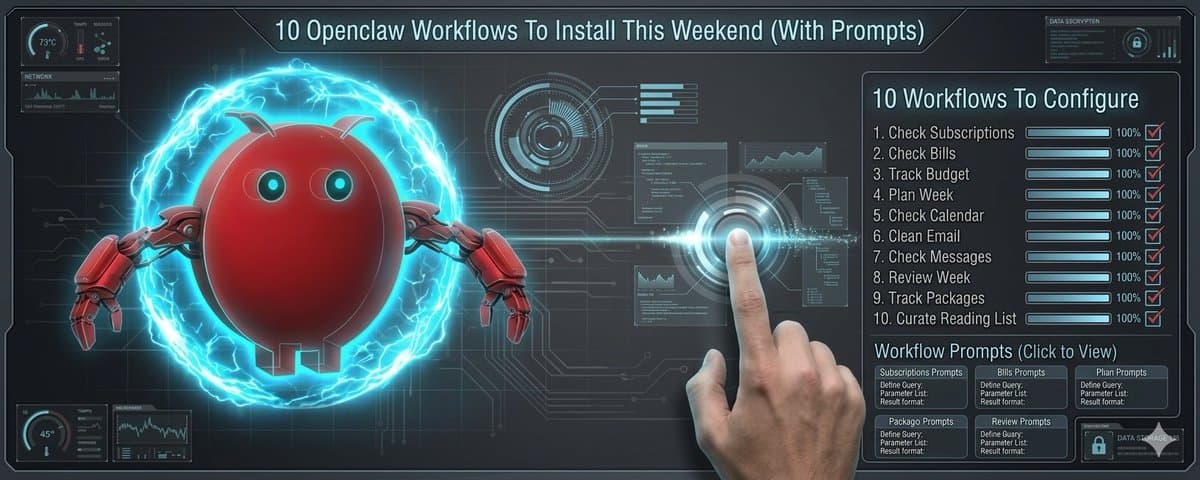
Everyone knows what @openclaw is by this point but not as many have it doing valuable work. Its real power is workflows. Pre-built instructions that tell your agent exactly how to handle specific tasks - checking your bills, planning your week, cleaning your inbox - on autopilot.
If you read this article you will learn:
- 10 tactical workflows you can implement today
- The exact system prompt for each one (copy-paste ready)
- How to set up scheduling so they run without you asking
- Why your email inbox is a goldmine of data you're ignoring
Real quick ...
If you're non-technical and want to learn how to build systems like this, join our Build With AI community waitlist: http://return-my-time.kit.com/1bd2720397
Alright lets get going...
How These Workflows Work
Each workflow is a simple text file called a SKILL.md. It's plain English instructions that tell your OpenClaw agent what to do, when to do it, and what rules to follow. You save it to a folder and it's live. No code.
Most of these run on a schedule (Monday mornings, Friday evenings, daily at 8am) using OpenClaw's built-in scheduling. Some you trigger by sending a message like "check my bills" from WhatsApp or Telegram.
Every workflow follows the same pattern:
-> It reads data from sources you already have (email, calendar, messages) -> It organizes that data into something useful -> It tells you what it found and what to do about it -> It never takes action without your permission
That last part matters. These workflows surface information and make recommendations. They don't auto-pay bills, auto-delete emails, or auto-send messages. You stay in control.
What You Need Before You Start
Here's the problem: when a workflow says "*scan my email for bills*," your OpenClaw agent needs a way to actually open your inbox and read those emails. It can't do that on its own.
That's where the Google Workspace CLI comes in. Think of it as a key that unlocks your Gmail and Google Calendar for your agent. Once installed, your agent can search your email, read messages, check your calendar, and organize your inbox - all without you opening a browser.
It's called gws. It's free. It's open source. And it takes about 5 minutes to set up.
How to install it (pick whichever you're most comfortable with):
The setup wizard does the heavy lifting. It connects to your Google account, turns on the right permissions, and saves everything securely on your computer. The whole thing takes about 3 minutes. You only do this once.
If you don't have the gcloud tool installed, run gws auth setup --no-gcloud instead and it'll give you manual steps. You will want gws for the workflows we're going to talk about next along with using @openclaw's web_fetch.
What is web fetch?
OpenClaw comes with a built-in tool called web_fetch that can pull content from any public website. Your agent uses it behind the scenes to grab articles from Hacker News, Reddit, and RSS feeds. You don't need to install anything for this - it's already part of OpenClaw. It works like this:
-> Your agent wants Hacker News top stories
-> it fetches https://hacker-news.firebaseio.com/v0/topstories.json
-> Your agent wants Reddit posts
-> it fetches a subreddit URL with .json at the end (like https://reddit.com/r/technology.json)
-> Your agent wants RSS articles -> it fetches the feed URL and reads the entries
OpenClaw also has a web_search tool (powered by Brave Search) that lets your agent search the web for articles. This is useful for the reading list workflow when you want articles from sources beyond your usual feeds.
Both tools are already installed. No setup required.
Now let's get into the workflows.
The 10 Workflows
1. Check Subscriptions (Find Money You Forgot You Were Spending)
What it does: Scans your last 60 days of email and bank statements for recurring charges. Identifies which subscriptions you're actually using versus the ones you forgot about. Flags price increases. Converts everything to monthly amounts so you can see exactly how much is leaving your account every month. Recommends what to cancel.
Why it matters: The average person has 5-15 forgotten subscriptions running in the background. This workflow typically surfaces $50-200/month in charges people didn't realize they were paying. It finds money in under 5 minutes.
Schedule: Runs the 1st of every month, or anytime you say "*check my subscriptions.*"
The prompt:
2. Check Bills (Never Miss a Payment Again)
What it does: Every Monday morning, it scans your email for upcoming bills. Organizes them by urgency - overdue, due this week, due this month. Catches price increases and duplicate charges. Flags any bill due in 3 days that doesn't have autopay set up.
Why it matters: Late fees, missed payments, and billing surprises add up fast. This workflow catches all of it before it becomes a problem. It takes 5 minutes to scan what would take you an hour to track manually.
Schedule: Every Monday at 8am.
The prompt:
3. Track Budget (Weekly Spending Visibility From Your Inbox)
What it does: Every Friday evening, it analyzes your email receipts and bank notifications from the past week. Categorizes spending into buckets (groceries, dining, shopping, subscriptions, transportation, entertainment, bills). Compares against monthly budget targets you set. Flags any category where you're trending over budget.
Why it matters: Most people have no idea where their money goes week to week. This gives you a weekly spending snapshot without downloading an app, connecting a bank account, or manually entering anything. It works entirely from your email.
Schedule: Every Friday at 6pm.
The prompt:
4. Plan Week (Start Monday With Clarity, Not Chaos)
What it does: Sunday at 6pm, it pulls your calendar for the next 7 days. Identifies your busiest days, your open blocks for focused work, any scheduling conflicts, and any meetings that need preparation. Asks you to pick your top 3 priorities for the week. Delivers a consolidated summary so Monday morning starts clean.
Why it matters: Most people start Monday reacting to whatever hits them first. This workflow forces 5 minutes of intentional planning on Sunday evening so you walk into the week knowing exactly what matters and where your time is going.
Schedule: Every Sunday at 6pm.
The prompt:
5. Check Calendar (48-Hour Lookahead Before Meetings Blindside You)
What it does: Twice a day (8am and 6pm), it scans the next 48 hours of your calendar. Catches overlapping meetings, back-to-back blocks with no break time, and location changes that require travel. Color-codes events by priority. Generates prep recommendations based on meeting type - 1:1s get talking point suggestions, external meetings get company research prompts, presentations get a checklist.
Why it matters: Most people look at their calendar 10 minutes before a meeting and panic. This gives you a 48-hour heads-up with specific prep actions so you're never caught off guard.
Schedule: Daily at 8am and 6pm.
The prompt:
6. Clean Email (Reclaim Your Inbox in One Pass)
What it does: Scans 30-60 days of your inbox. Identifies newsletters you never open, marketing emails piling up, notifications you always ignore. Categorizes senders as "never opened," "rarely opened," or "piling up." Calculates how much time you'd save by cleaning up. Walks you through unsubscribe and archive decisions without deleting anything.
Why it matters: The average knowledge worker gets 120+ emails a day. Most of them are noise. This workflow shows you exactly which senders are wasting your attention and helps you clean up without the fear of accidentally deleting something important.
Schedule: First of every month, or on demand ("clean my email").
The prompt:
7. Check Messages (One Summary Instead of Six Apps)
What it does: At scheduled intervals (9am, 12pm, 3pm, 6pm), it aggregates unread messages across all your platforms - Slack, Discord, Telegram, WhatsApp, iMessage. Prioritizes them into four levels: urgent (needs response now), important (respond today), informational (FYI only), and skippable. Delivers one consolidated summary instead of making you check six different apps.
Why it matters: The average person checks their phone 96 times a day, mostly to scan notifications across multiple apps. This workflow replaces that chaos with one structured update at set intervals so you can actually focus between check-ins.
Schedule: 9am, 12pm, 3pm, 6pm daily (customizable).
The prompt:
8. Review Week (Friday Reflection That Makes Quarterly Reviews Easy)
What it does: Every Friday at 5pm, it pulls your calendar events, completed tasks, and any goals you've set. Generates a markdown summary of what you accomplished, what decisions you made, what blocked you, and what's coming next week. Saves it as a searchable weekly artifact.
Why it matters: Most people can't remember what they did last Tuesday, let alone last quarter. This workflow creates a running record of your weeks so quarterly reviews, performance conversations, and annual planning take minutes instead of hours of trying to reconstruct the past.
Schedule: Every Friday at 5pm.
The prompt:
9. Track Packages (All Your Shipments in One Place)
What it does: Twice a day (8am and 5pm), it monitors your email for shipping confirmations and tracking notifications from all carriers - Amazon, FedEx, UPS, USPS, DHL, and others. Aggregates every pending, in-transit, and recently delivered package into one view with tracking links and expected arrival dates. Morning runs show the full board; evening runs show only changes.
Why it matters: If you order from multiple retailers, tracking packages means searching through dozens of emails across different carriers. This workflow gives you one consolidated view. It also catches packages that seem stalled (label created but no movement in 5+ days) before you forget about them.
Schedule: Daily at 8am and 5pm.
The prompt:
10. Curate Reading List (5 Great Articles Instead of 30 Mediocre Ones)
What it does: Every morning at 8am, it pulls 5-10 high-quality articles from sources you care about - Hacker News, Reddit, RSS feeds, newsletters. Filters by your interest preferences. Removes paywalled content and duplicates. Gives you a 2-3 line summary of each article and why it's worth reading. Saves the list to your preferred location.
Why it matters: Most people either scroll endlessly or don't read at all because there's too much content and no curation. This workflow solves both problems - it gives you a short, high-quality reading list every morning so you stay informed without drowning in information.
Schedule: Daily at 8am.
The prompt:
How to Install Any of These Workflows
-> Step 1: Copy the prompt from above into a new markdown file. Name it SKILL.md
-> Step 2: Add a short header at the very top of the file that tells @openclaw the skill's name and when to run it. It looks like this:
-> Step 3: Save the file into your OpenClaw skills folder. On most systems that's ~/.openclaw/skills/
-> Step 4: That's it. The workflow is live. It'll run on the schedule you set, or you can trigger it anytime by messaging your agent ("check my bills", "plan my week", "where are my packages", etc.)
* PRO TIP: Just drop all this into claude code or codex and let it build the skill for you with their native skill creator tools and have it register it int your @openclaw. Any engineering work I prefer to have done by Claude Code or Codex and use @openclaw as a user of the system. *
Your agent now knows what to do, when to do it, and what rules to follow. No code required.
The Pattern You Should Notice
Look at what these 10 workflows have in common:
- They all pull data from things you already have (email, calendar, messages)
- They all organize messy information into something clear and actionable
- They all run on a schedule so you never have to remember to do them
- They all recommend actions but never take action without your approval
Your email inbox alone contains your bills, your subscriptions, your spending, your shipping, and your schedule. That's a goldmine of data sitting in plain text that nobody is organizing for you.
Until now.
10 workflows. Implement the ones you like.
Your agent is only as useful as the instructions you give it. These are the instructions.
PS: If you like this guide, you'll love what's coming.
I'm building a community where I break down exactly how to turn custom agents into a real employee: research agents, operations agents, optimization agents, all of it.
Join the waitlist here: https://return-my-time.kit.com/1bd2720397